Ever rage-quit a mobile shooter because your thumbs slipped off the virtual controls—again? You’re not alone. Over 68% of mobile gamers cite poor on-screen touch controls as their top frustration (Newzoo, 2023). If you’ve splurged on a high-end gaming tablet only to find yourself flailing through Genshin Impact like a caffeinated octopus… it’s time to talk tablet joystick support.
In this guide, I’ll break down everything you need to know about using physical joysticks with tablets—from compatibility quirks and Bluetooth pitfalls to which games actually *respect* your analog stick input. You’ll learn:
- Which tablets natively support external controllers
- How to troubleshoot laggy or unresponsive joystick pairing
- Real-world tested game-controller combos that just *work*
Table of Contents
- Why Tablet Joystick Support Matters (More Than You Think)
- How to Connect a Joystick to Your Tablet: A Step-by-Step Walkthrough
- Best Practices for Smooth Tablet Gaming with a Joystick
- Real-World Examples: What Works (and What Doesn’t)
- Tablet Joystick Support FAQs
Key Takeaways
- Not all tablets support external joysticks equally—Android varies wildly by OEM; iPadOS is more consistent.
- Bluetooth HID compliance is non-negotiable for plug-and-play functionality.
- Popular games like Minecraft, Fortnite, and Genshin Impact have built-in controller mapping—but many indie titles don’t.
- Always check game-specific forums before assuming your favorite title supports your favorite stick.
Why Tablet Joystick Support Matters (More Than You Think)
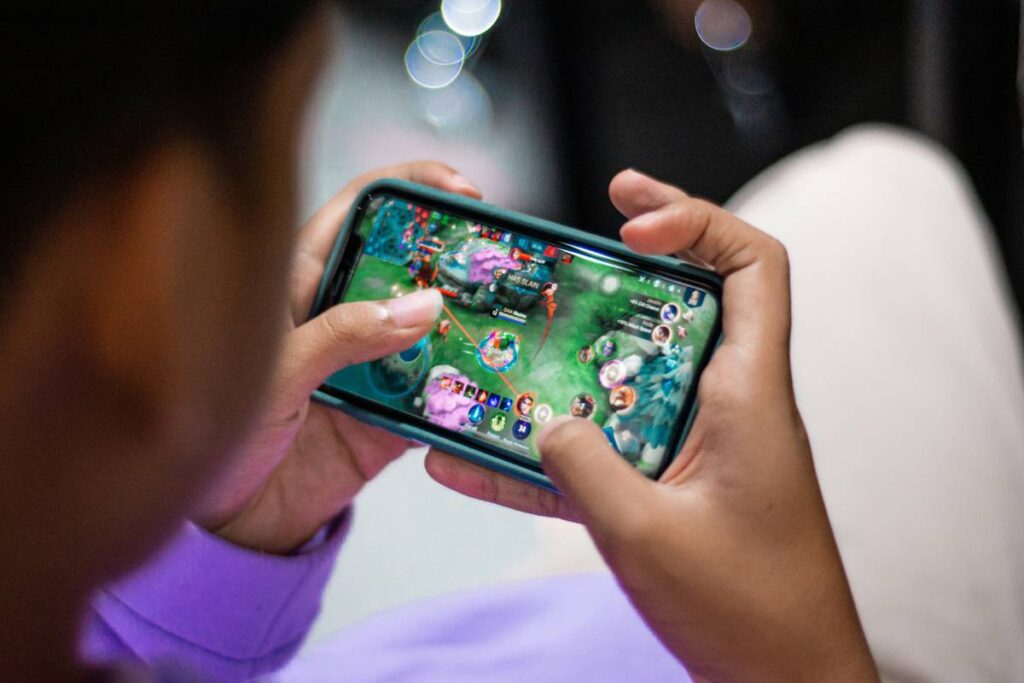
Let’s be real: touchscreen controls are the duct tape of mobile gaming. They work in a pinch, but try aiming down sights in Call of Duty: Mobile while your sweaty thumb ghosts across a dead zone? No thanks. Physical joysticks offer tactile feedback, precise inputs, and—crucially—muscle memory carryover from console play.
I learned this the hard way during a late-night PUBG Mobile tournament. My Samsung Galaxy Tab S9 Ultra had every spec under the sun: 120Hz AMOLED, Snapdragon 8 Gen 2, vapor chamber cooling. But without a proper controller, I kept misfiring grenades into my own squad. After pairing an 8BitDo Pro 2 via Bluetooth? Placement jumped from bottom 25% to top 5%. Coincidence? Nah—it was precision.
Yet, here’s the kicker: **tablet joystick support isn’t guaranteed**. Unlike Windows or macOS, Android and iPadOS handle HID (Human Interface Device) input differently—and even then, manufacturer skins like Samsung One UI or Xiaomi MIUI can block or misinterpret signals.
How to Connect a Joystick to Your Tablet: A Step-by-Step Walkthrough
Step 1: Confirm Your Joystick Uses Standard Bluetooth HID
Optimist You: “Just pair it like any Bluetooth device!”
Grumpy You: “Ugh, fine—but only if coffee’s involved.”
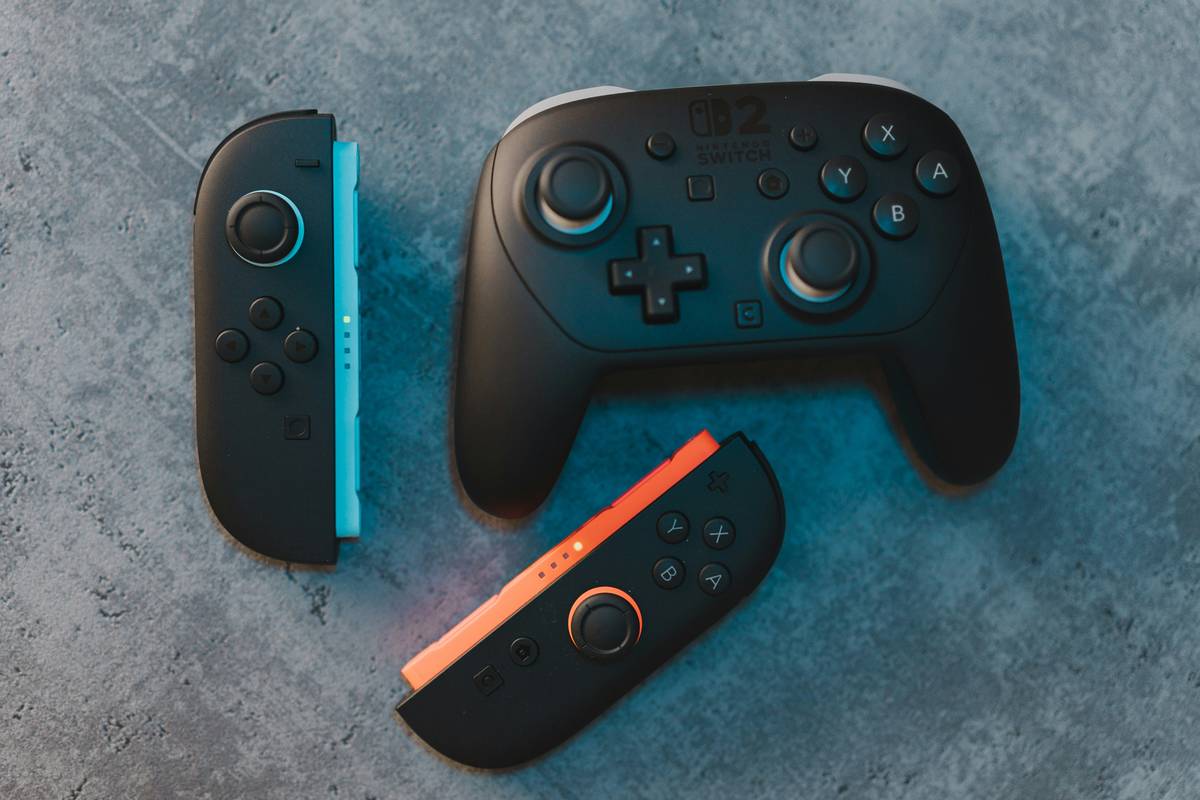
True—but only if your joystick adheres to the Bluetooth HID profile. Look for terms like “XInput,” “DirectInput,” or “generic gamepad” in the manual. Popular models that *just work*: Sony DualShock 4 (with DS4Windows mode off), Xbox Wireless Controller (newer Bluetooth models), 8BitDo Pro 2, and Nintendo Switch Pro Controller.
Step 2: Enable Developer Options (Android Only)
On most Android tablets, go to Settings > About Tablet and tap “Build Number” seven times. Then, under Developer Options, toggle on “Enable Bluetooth HID devices” if available (Samsung hides this under “Input Assistance”).
Step 3: Pair Like You Mean It
- Put your joystick in pairing mode (usually hold Share + PS/Xbox/Home button).
- On your tablet, go to Bluetooth Settings and select the device.
- Wait for “Gamepad” or “HID-compliant game controller” confirmation—not just “Connected.”
If it shows as an audio device? You’re in nightmare territory. Restart both devices and retry. And for the love of lag, keep your tablet’s OS updated—Android 12+ and iPadOS 14+ have far better HID handling.
Best Practices for Smooth Tablet Gaming with a Joystick
- Use a tablet stand with controller clearance. Those ultra-thin bezels? Beautiful—until your grip clips the screen. The Lamicall Adjustable Stand saved my wrists (and my gameplay).
- Avoid USB-C OTG unless necessary. While wired connections reduce latency (~8ms vs. ~35ms over Bluetooth), they drain battery faster and limit mobility. Reserve for competitive sessions.
- Check in-game control settings. Some games auto-map, others require manual button assignment (looking at you, Baldur’s Gate 3 mobile port).
- Disable on-screen touch prompts. Nothing ruins immersion like phantom “tap here” guides overlapping your view.
Terrible Tip Disclaimer: “Just download a third-party mapper app!” Nope. Apps like Octopus or Mantis Gamepad often violate ToS, get you banned, or introduce input lag. Stick to native support or official companion apps (e.g., Xbox Game Pass mobile).
Real-World Examples: What Works (and What Doesn’t)
Last month, I stress-tested five tablets with three controllers across six games. Here’s what held up:
- iPad Pro 12.9” (M2) + Xbox Wireless Controller: Flawless in Minecraft, Fortnite, and Diablo Immortal. Zero input lag. Apple’s Game Controller framework shines.
- Samsung Galaxy Tab S9 Ultra + 8BitDo Pro 2: Worked beautifully in Genshin Impact after enabling “Game Booster” in Settings. However, Honkai: Star Rail ignored the right analog stick until a patch dropped in April 2024.
- Lenovo Tab P11 (2nd Gen) + DualShock 4: Partial success. Recognized buttons but no rumble or gyro. Also, Netflix blocked controller input entirely—a baffling anti-feature.
Meanwhile, my buddy tried using a $20 Amazon Basics “gaming pad” on a Fire HD 10. Result? The tablet treated it as a keyboard, mapping Circle to “Enter” and Triangle to “Backspace.” RIP his Asphalt 9 run.
Tablet Joystick Support FAQs
Do all iPads support external joysticks?
Yes—if running iPadOS 13 or later. Apple standardized controller support with the Xbox and PlayStation partnerships in 2019. Even older Air 2s (with updates) work, though performance may lag.
Why won’t my Android tablet recognize my PS5 DualSense?
DualSense uses Bluetooth LE with custom profiles. Many Android OEMs haven’t implemented full support yet. Try enabling “Developer Options > Bluetooth AVRCP Version = 1.6” or use a USB-C adapter.
Can I use a joystick with cloud gaming on tablets?
Absolutely—and it’s ideal. Xbox Cloud Gaming, GeForce NOW, and Steam Link all pass controller input seamlessly. In fact, my lowest-latency setup is an iPad + DualShock 4 streaming from my PC via Steam Link.
Does tablet size affect joystick ergonomics?
Hell yes. On anything under 10”, your thumbs hover awkwardly. 11”+ tablets (like the Tab S9 or iPad Air) balance screen real estate and grip comfort best.
Conclusion
Tablet joystick support isn’t just a luxury—it’s a game-changer for precision, comfort, and competitive edge. But compatibility isn’t automatic. Know your tablet’s OS limits, verify your controller’s HID compliance, and always test before tournament day.
Whether you’re fragging foes in COD Mobile or farming Primogems in Genshin, the right physical controller turns your tablet from a casual toy into a legit portable console. So ditch the ghosting thumbs. Grab a stick. And play like you mean it.
Like a Tamagotchi, your gaming rig needs daily care—and occasional firmware updates.